![MicrosoftTeams-image (28).png]](https://27075283.hs-sites-eu1.com/hs-fs/hubfs/MicrosoftTeams-image%20(28).png?width=85&height=85&name=MicrosoftTeams-image%20(28).png)
Through the different tabs, you can immediately see the status of each last-minute slot.
📂 Overview of the statuses
At the top of the Last-Minute module, you can easily navigate between the different statuses.
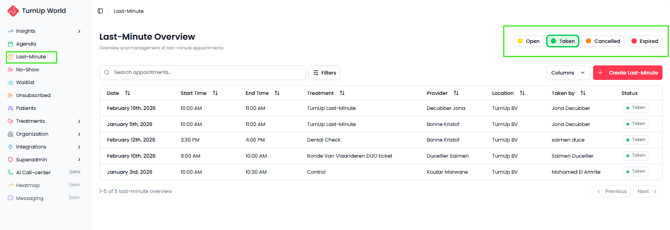
🟡 Open
A last-minute appointment appears under Open when:
-
The last-minute was successfully created
-
Invitations have been sent
-
No patient has yet taken the appointment
These are active last-minutes that are still waiting to be filled.
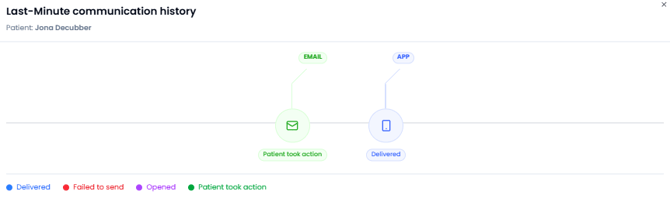
If you click on a last-minute appointment, you can see which patients received the invitation and through which channel.
🟢 Taken
An appointment appears under Booked when a patient has confirmed the last-minute.
If other patients try to take the appointment afterward, they will see that it is no longer available.
By clicking on the last-minute, you can see which patient took the appointment. Clicking on the patient shows through which channel this happened.
🟠 Cancelled
An appointment appears under Cancelled when the practice has manually stopped the last-minute.
For example, this can happen when a patient calls with an urgent request.
If the last-minute has not yet been booked via TurnUp, the practice can cancel it to free up the time slot for the urgent case.
⚠️ Before cancelling a last-minute, always check that it is still marked as “Open” and has not already been booked. This prevents cancelling a confirmed appointment.
🔴 Expired
An appointment appears under Expired when:
-
The time slot has passed
-
No patient has confirmed
These appointments can no longer be filled.
👉 This is an important tab to analyze why certain slots were not filled. By clicking on the appointment, you can see how many and which patients received the invitation.
💡 Why is this important for your practice?
Proper use of the Last-Minute module leads to fewer empty chairs and a more efficient schedule.
By understanding the statuses correctly, you can:
-
Analyze why certain last-minutes were not filled
-
Optimize your waiting list strategy