![MicrosoftTeams-image (28).png]](https://27075283.hs-sites-eu1.com/hs-fs/hubfs/MicrosoftTeams-image%20(28).png?width=85&height=85&name=MicrosoftTeams-image%20(28).png)
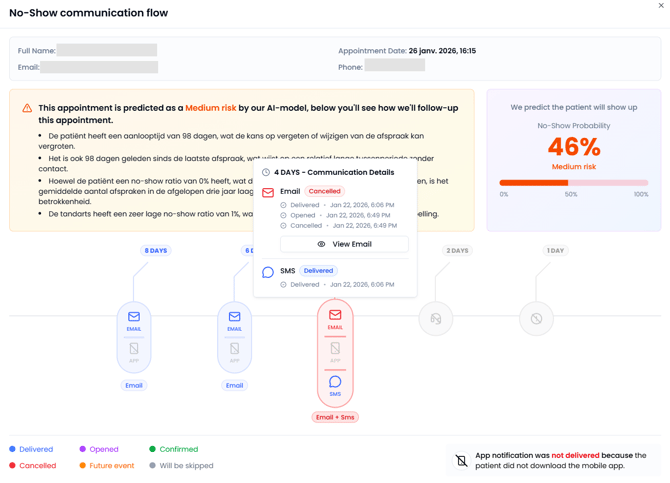
📍 Where can I find the communication timeline?
Follow these steps:
-
Go to the TurnUp application
-
Open the No-Show module
-
Click on a potential no-show appointment
➡️ The timeline appears automatically when you open the appointment.
👀 What can I see in the timeline?
When you hover over a step in the timeline, you can see:
-
When the message was sent
-
Through which channel
-
Whether it was delivered or opened
-
The exact message the patient received
-
How the patient responded (confirmation or cancellation)
🎨 What do the colors mean?
Each step has a fixed color for quick interpretation:
-
🔵 Blue: Message sent and delivered
-
🟣 Purple: Message opened, no action taken
-
🟢 Green: Appointment confirmed
-
🔴 Red: Appointment cancelled
-
🟠 Orange: Message scheduled
-
⚫ Grey: Skipped (for example, because the channel is not activated/available for the patient)
🚀 What does this mean for your practice?
-
Quickly see whether a patient was effectively reached
-
Check whether communication was opened
-
Better assess whether additional follow-up is needed
-
Gain more insight into no-show behavior