![MicrosoftTeams-image (28).png]](https://27075283.hs-sites-eu1.com/hs-fs/hubfs/MicrosoftTeams-image%20(28).png?width=85&height=85&name=MicrosoftTeams-image%20(28).png)
📍 Where to find this in TurnUp
Follow these steps:
-
Go to the TurnUp application
-
Open the No-Show module
-
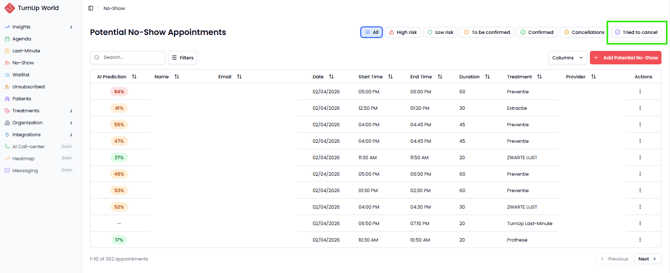
Click on the “Tried to cancel” tab
In this tab, you will see all appointments where:
-
the patient attempted to cancel
-
but the cancellation was not completed
❓ Why was the cancellation not processed?
This can happen when:
-
cancellations are not allowed according to your practice settings
-
the patient tried to cancel too late
-
the allowed cancellation period had already expired
The appointment remains active in your agenda, but the cancellation attempt is still recorded.
🔎 Why do I no longer see a patient in “Tried to Cancel”?
Sometimes a patient says they tried to cancel, but you can no longer find the appointment in the “Tried to Cancel” tab. This usually means that action has already been taken.
-
The appointment was already cancelled
The patient contacted the practice directly and the appointment was cancelled manually. In this case, you will find the appointment under the “Cancellations” tab. -
The patient cancelled and booked a new appointment
The patient called to cancel and immediately scheduled a new appointment. The original appointment appears under “Cancellations”, and the new appointment appears under “To Confirm” (if it takes place within 14 days).
Make sure to check these tabs for a complete overview.
🚀 Why is this important for your practice?
This tab helps you to:
-
Detect potential no-shows in time
-
Proactively contact the patient
-
Manage your schedule more efficiently
-
Avoid unexpected empty time slots
👉 If you see an appointment listed here, it may indicate that the patient no longer intends to attend and follow-up may be advisable.