![MicrosoftTeams-image (28).png]](https://27075283.hs-sites-eu1.com/hs-fs/hubfs/MicrosoftTeams-image%20(28).png?width=85&height=85&name=MicrosoftTeams-image%20(28).png)
With the Last-Minute Communication Timeline, you get a clear overview of the full communication flow at a glance. This helps you work more efficiently and avoid unnecessary follow-up.
👀 Where can you find the communication timeline?
Follow these steps:
-
Go to the Last-Minute module.
-
Open one of the following tabs:
-
Open
-
Booked
-
Cancelled
-
Expired
-
-
Click on a patient in the list.
-
The communication timeline will automatically appear.
You can immediately see how the communication has progressed.
⚙️ What is the Last-Minute Communication Timeline?
The Communication Timeline shows the complete communication history for each last-minute appointment.
For each patient, you can see:
-
When the message was sent
-
Through which channel it was sent
-
Whether the message was delivered
-
Whether the patient opened the message
-
Whether the patient took action (confirmed or cancelled)
-
Which exact communication was sent
This gives you a clear view of the entire journey: from the first invitation to the final action.
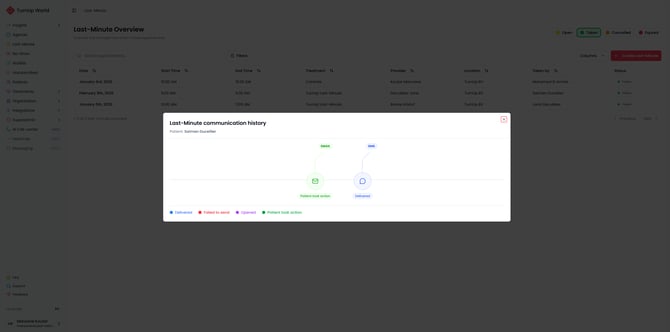
🎨 What do the colors mean?
The colors indicate the status of each message:
-
🔵 Blue: Message delivered
-
🟣 Purple: Message opened
-
🟢 Green: Patient took action
-
🔴 Red: Message not delivered
This allows you to understand the situation at a glance.
✅ Why is this important for your practice?
With last-minute appointments, every minute counts. Thanks to the timeline:
-
You immediately see whether a patient has responded
-
You understand why a slot was filled or not
-
You avoid unnecessary phone calls or manual follow-up