![MicrosoftTeams-image (28).png]](https://27075283.hs-sites-eu1.com/hs-fs/hubfs/MicrosoftTeams-image%20(28).png?width=85&height=85&name=MicrosoftTeams-image%20(28).png)
This article explains step by step how to do this correctly and what happens after a last-minute appointment has been accepted.
⚠️ Remarks
-
This procedure applies to practices with and without active synchronisation between TurnUp World and the DentAdmin environment.
-
Creating a last-minute appointment from DentAdmin is only possible once the TurnUp team has configured the communication matrix in DentAdmin in advance. This enables the following actions:
-
Add patient to the waiting list
-
Remove patient from the waiting list
-
Create a last-minute appointment
-
Cancel a last-minute appointment
-
📝Step-by-step guide
Step 1: Create a patient appointment
First, create a new appointment in DentAdmin.
-
Patient: use the fictitious patient “TurnUp”, created in advance by the TurnUp team
-
Duration: make sure the appointment duration is correct. This is the time slot TurnUp will try to fill.
-
Practitioner: select the correct practitioner. The practitioner must have an active TurnUp licence.
-
Label/complaint: optional
-
Save the appointment
👉 The appointment with patient TurnUp now appears in the agenda among the other appointments.
This is a placeholder appointment. At this stage, no patients have been invited yet.
Step 2: Create the last-minute appointment and send invitations
-
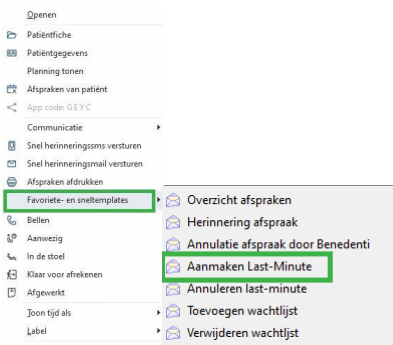
Right-click on the appointment you just created
-
Go to Favourites and quick templates
-
Click Create last-minute appointment
The front desk receives an email confirming that the last-minute appointment has been created successfully.
👉 TurnUp then automatically scans the waiting list and determines which patients are invited based on:
-
the duration
-
the practitioner
-
any additional filters
📩 What happens after the last-minute appointment is accepted?
Once a patient confirms the last-minute appointment:
-
The front desk receives a confirmation email with the patient’s details
-
The patient receives a confirmation email
-
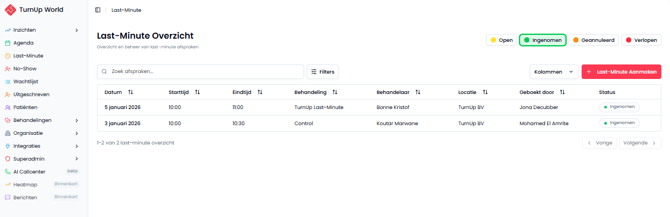
The appointment moves in TurnUp from Last-Minutes > Open to Last-Minutes > Taken
📅 Correctly place the appointment in DentAdmin
-
Go to the patient’s existing appointment in DentAdmin
-
Update it with the new time slot of the last-minute appointment
-
The appointment is now correctly scheduled in the agenda, next to the placeholder appointment with patient TurnUp (made in Step 1).
-
Optional: you may remove the appointment with patient TurnUp (made in Step 1).
⚠️ Do not cancel this appointment
📊 Monitoring last-minute appointments
You can monitor the status of your last-minute appointments at any time in the Last-Minutes module within the TurnUp application.