![MicrosoftTeams-image (28).png]](https://27075283.hs-sites-eu1.com/hs-fs/hubfs/MicrosoftTeams-image%20(28).png?width=85&height=85&name=MicrosoftTeams-image%20(28).png)
In this article, you’ll learn how to cancel a created but not yet accepted last-minute appointment from DentAdmin.
⚠️ Remarks
-
This procedure applies to practices with and without active synchronisation between TurnUp World and the DentAdmin environment.
-
Removing an appointment from the waiting list via DentAdmin is only possible once the TurnUp team has configured the communication matrix in DentAdmin in advance.
This enables the following actions:-
Add patient to the waiting list
-
Remove patient from the waiting list
-
Create a last-minute appointment
-
Cancel a last-minute appointment
-
📝Step-by-step guide
Step 1: Check that the last-minute appointment has not yet been accepted
⚠️ This is a crucial step.
If a patient has already accepted the last-minute appointment and you cancel it afterwards, the patient will not be notified automatically, which may cause confusion.
Always check that the appointment is still open. You can do this in two ways:
-
Via the practice inbox
When a patient accepts a last-minute appointment, the front desk receives a confirmation email.
If you haven’t received this email, the appointment is most likely still unaccepted. -
Via the TurnUp application
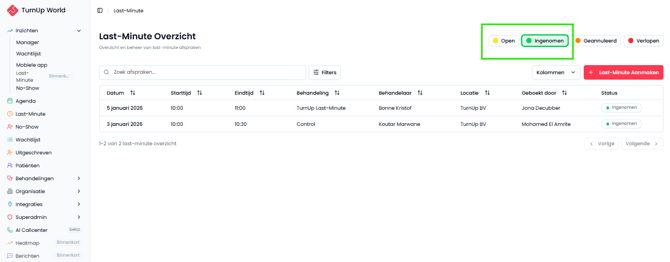
Go to the Last-Minutes module in TurnUp.-
If the appointment status is Open, no one has accepted it yet and you can safely cancel it.
-
If the status is Taken, you should not cancel it via DentAdmin without contacting the patient.
-
Step 2: Cancel the last-minute appointment in DentAdmin
Once you’ve confirmed the appointment has not yet been accepted:
-
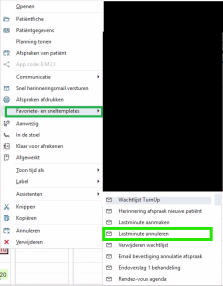
Right-click on the created last-minute appointment in DentAdmin
-
Go to Favourites and quick templates
-
Click Cancel last-minute appointment
What are the consequences?
-
The last-minute appointment moves in TurnUp from Open to Cancelled.
-
Patients who still click on the invitation will see that the appointment is no longer available.