![MicrosoftTeams-image (28).png]](https://27075283.hs-sites-eu1.com/hs-fs/hubfs/MicrosoftTeams-image%20(28).png?width=85&height=85&name=MicrosoftTeams-image%20(28).png)
This article explains how to add an existing patient appointment to the TurnUp waiting list directly from DentAdmin.
⚠️ Points of attention
-
This method applies to practices with and without active synchronisation between TurnUp World and the DentAdmin environment.
-
Adding a patient to the waiting list from DentAdmin is only possible once the TurnUp team has configured the communication matrix in DentAdmin in advance.
This matrix enables the following commands to be used from DentAdmin:-
Add patient to the waiting list
-
Remove patient from the waiting list
-
Create a last-minute appointment
-
Cancel a last-minute appointment
-
-
In most cases, existing and already scheduled appointments are added to the waiting list.
If you want to add a patient without an existing appointment to the waiting list, this can be done directly via the TurnUp application. More information on this topic can be found here. -
Each appointment is added to the waiting list separately, meaning a patient can have multiple waiting list entries.
📝 Step-by-step guide
-
Open the agenda in DentAdmin
-
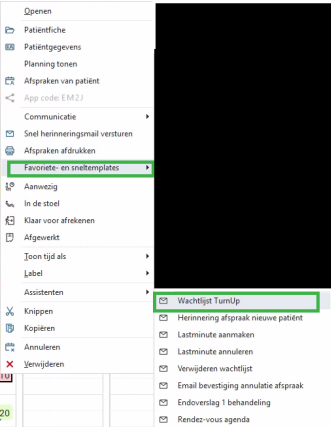
Right-click on the appointment you want to add to the waiting list
-
Hover over Favourites and quick templates
-
Click Add to waiting list
What happens next?
-
If the patient’s email address is known in DentAdmin, the patient receives an email confirming that they have been added to the waiting list.
-
From this email, the patient can unsubscribe from the waiting list if desired.
-
The patient appears in the Waitlist module of the TurnUp application.
-
From that moment on, the patient becomes eligible for relevant last-minute appointments, based on the correct practitioner, duration, and any additional filters.